Complete Setup Guide
This comprehensive guide will walk you through setting up qutePandas from scratch, even if you have zero knowledge of kdb+. Follow each step carefully to get started.
📋 Table of Contents
Before you begin, ensure you have the following:
- Python 3.8 or higher installed
- pip (Python package installer)
- An email address to register for a kdb+ license
- Basic familiarity with command line/terminal
What is kdb+?
kdb+ is a high-performance time-series database that powers qutePandas. To use qutePandas, you need a free kdb+ license from KX Systems.
How to get your license:
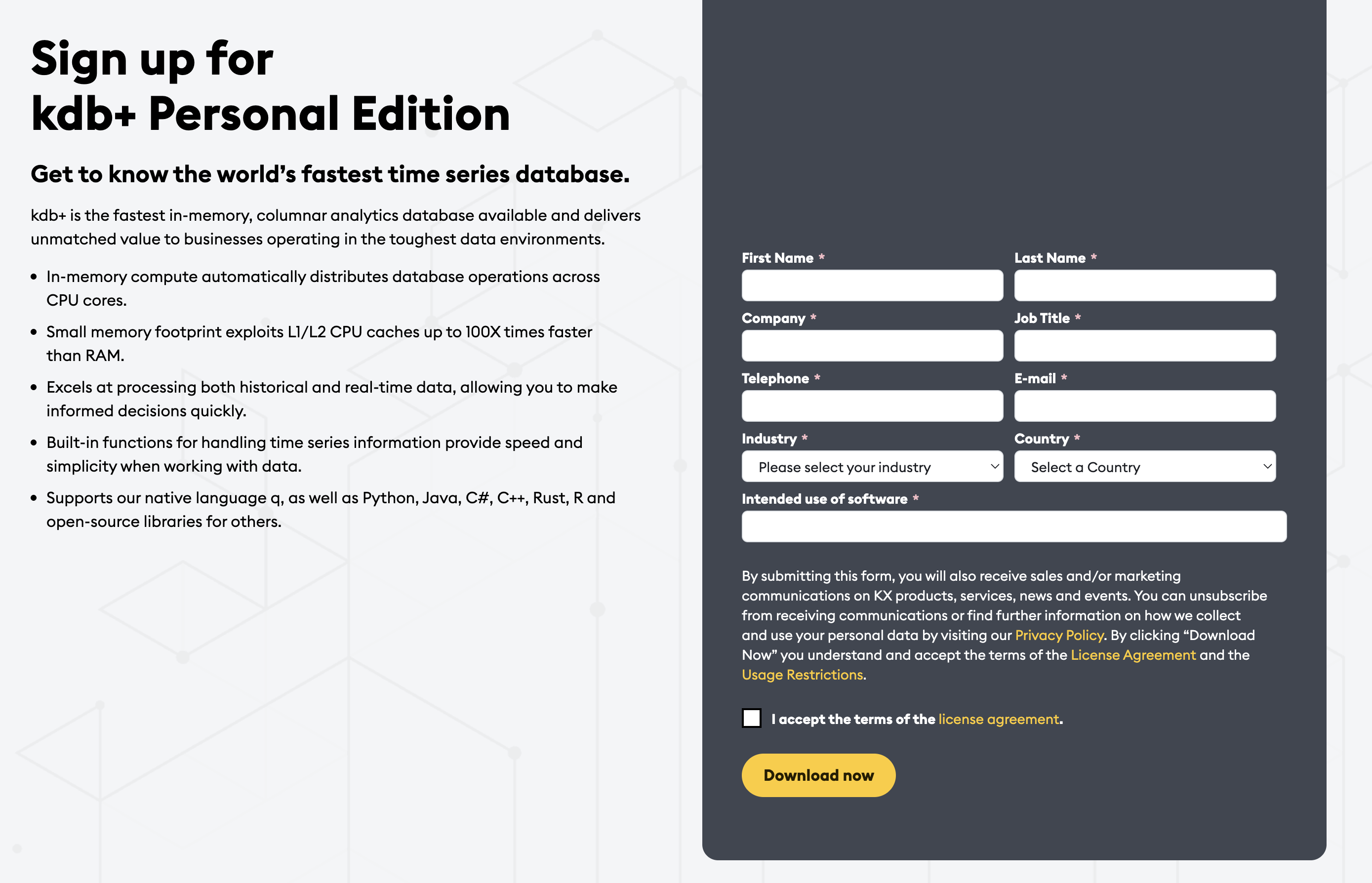
- Visit the KX Personal License Download Page:
https://kx.com/kdb-personal-edition-download/ - Fill out the registration form with your details:
- Full name
- Email address (you'll receive the license here)
- Company/Organization (can be "Personal" or "Student")
- Country
- Accept the terms and conditions
- Click "Download"
- Check your email inbox for a message from KX Systems
- Download the license file (
kc.licork4.lic) from the email
kc.lic or
k4.lic.
Do not rename this file!
qutePandas relies on several high-performance libraries including PyKX, Pandas, NumPy, and PyArrow.
Installation steps:
- Open your terminal or command prompt
- Run the following command to install all required libraries:
Verify PyKX installation:
You should see a version number like 2.0.0 or higher.
qutePandas needs to know where your kdb+ license is located. There are three recommended locations where you can store it:
Option 1: Project-Level (Recommended for Development)
Store the license in your project directory. This is ideal when working on a specific project.
Step-by-step:
- Locate the
kc.licfile you downloaded from your email (likely in your Downloads folder) - Navigate to your project root directory in terminal
- Create a kdb_lic folder
- Move the license file into this folder
macOS/Linux:
Windows (Command Prompt):
Windows (PowerShell):
Your project structure should look like:
your_project/
├── kdb_lic/
│   └── kc.lic
├── your_script.py
└── ...
Option 2: User Home Directory (Recommended for Global Access)
Store the license in your home directory to use it across all your Python projects.
Step-by-step:
- Locate the
kc.licfile from your Downloads - Create a .qutepandas folder in your home directory
- Move the license file into this folder
macOS/Linux:
Windows (Command Prompt):
Windows (PowerShell):
Option 3: Environment Variable (Advanced)
Set the QLIC environment variable to point to any directory containing your license.
macOS/Linux (add to ~/.bashrc or ~/.zshrc):
Windows (System Properties → Environment Variables):
Now that PyKX and your license are set up, install qutePandas:
Let's make sure everything is working correctly!
Quick Test Script
Create a new Python file (e.g., test_qutepandas.py) and add:
Run the script:
Expected output:
Issue 1: "License Exception" Error
Solution:
- Verify your license file is named
kc.licork4.lic - Check that the license is in one of these locations:
- ~/.qutepandas/kc.lic
- ./kdb_lic/kc.lic (in your project)
- Directory specified by
QLICenvironment variable
- Manually set the license path before importing:
import os os.environ['QLIC'] = '/path/to/your/license/directory' import qutePandas as qpd
Issue 2: "ModuleNotFoundError: No module named 'pykx'"
Solution:
- Make sure PyKX is installed: pip install pykx
- If using a virtual environment, ensure it's activated
- Try upgrading pip: pip install --upgrade pip
Issue 3: Connection Timeout
Solution:
- Check your firewall settings
- Ensure no other kdb+ processes are running on the default port
- Try restarting your Python kernel/session
Issue 4: Import Errors on Windows
Solution:
- Install Visual C++ Redistributable if not already installed
- Ensure Python is added to your PATH
- Try running your terminal/IDE as administrator